
Cheat sheets /

VS Code cheat sheet

The VS Code shortcuts on a Mac that save the most time: multiple cursors, moving lines, jumping to symbols, and the panels you keep reaching for with the mouse.

Download all 46 for Snippet Keeper Get Snippet Keeper

In Snippet Keeper, click Import at the bottom of the sidebar and choose the file. They land in your VS Code app, and ones you already have are skipped. The highlighted parts become fill-in fields: type a value (or pick one), and the finished command is on your clipboard.

General

Command Palette

⌘ ⇧ P

Open a file by name

⌘ P

Settings

⌘ ,

Keyboard shortcuts

⌘ K ⌘ S

Show or hide the sidebar

⌘ B

Show or hide the terminal

⌃ `

New terminal

⌃ ⇧ `

Zen mode

Press Esc twice to leave.

⌘ K Z

Editing

Move line up or down

⌥ ↑ / ⌥ ↓

Duplicate line

⇧ ⌥ ↓

Delete line

⌘ ⇧ K

Insert line below

⌘ ↩

Toggle line comment

⌘ /

Toggle block comment

⇧ ⌥ A

Indent or outdent

⌘ ] / ⌘ [

Format document

⇧ ⌥ F

Fold or unfold region

⌥ ⌘ [ / ⌥ ⌘ ]

Expand selection

⌃ ⇧ ⌘ →

Multiple cursors

Add a cursor

⌥ click

Select next occurrence

⌘ D

Select all occurrences

⌘ ⇧ L

Add cursor above or below

⌥ ⌘ ↑ / ⌥ ⌘ ↓

Cursor at the end of each selected line

⇧ ⌥ I

Column (box) selection

⇧ ⌥ drag

Search and refactor

Find

⌘ F

Replace

⌥ ⌘ F

Search across files

⌘ ⇧ F

Rename symbol

F2

Quick fix

⌘ .

Editors and panels

Split editor

⌘ \

Close editor

⌘ W

Reopen closed editor

⌘ ⇧ T

Explorer

⇧ ⌘ E

Source control

⌃ ⇧ G

Problems

⇧ ⌘ M

Command line

Open a folder in VS Code

Install the command first: Command Palette → Shell Command: Install ‘code’ command in PATH.

code path

Compare two files

code --diff file1 file2

Install an extension

code --install-extension extension

Keep these one keystroke away.

Snippet Keeper is a Mac app for the commands you keep looking up. Press ⌥⇧Space in any app, type a few letters, fill in the blanks, and it’s on your clipboard.
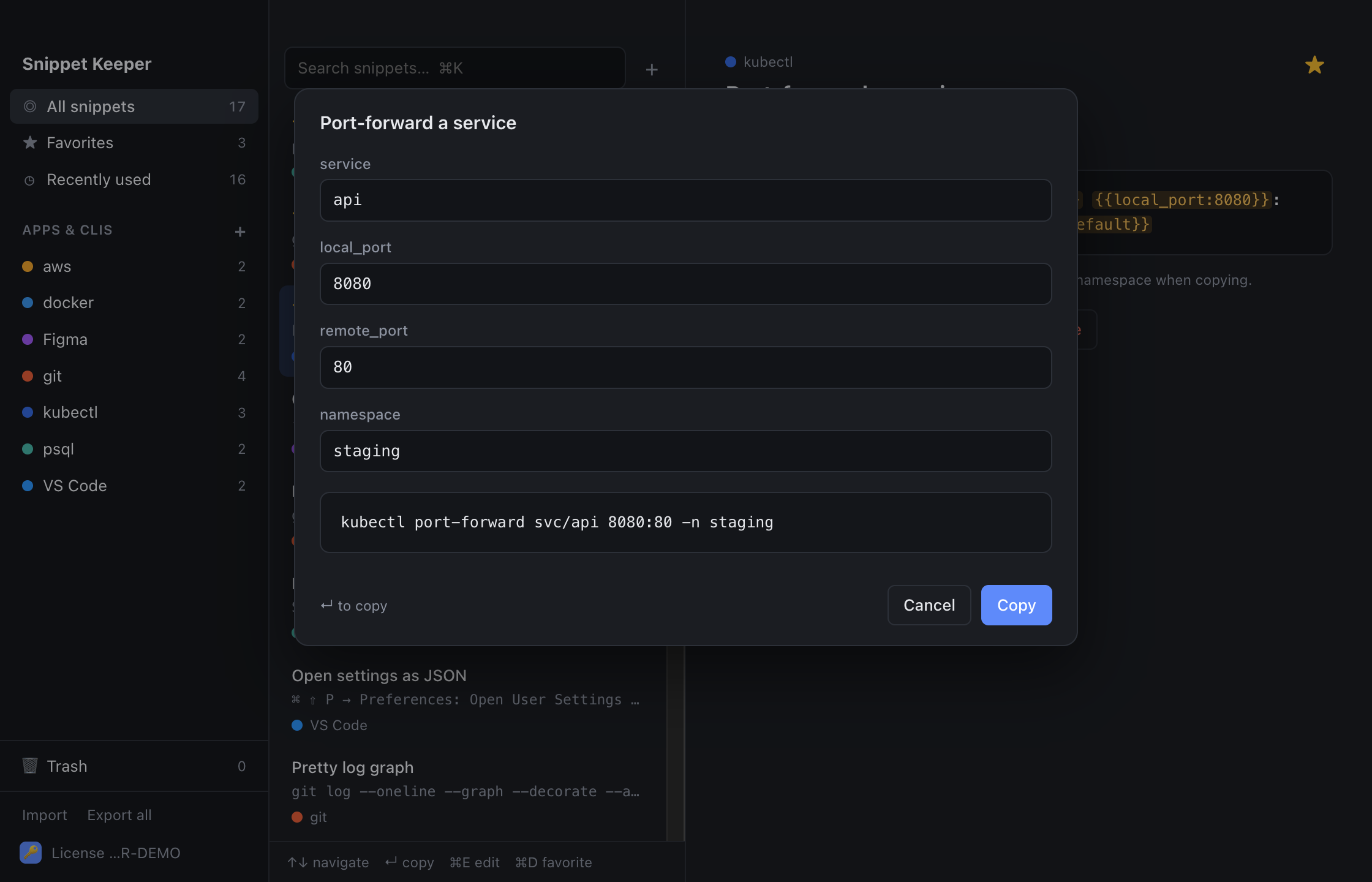
Snippet Keeper asking for the values in a kubectl command before copying it